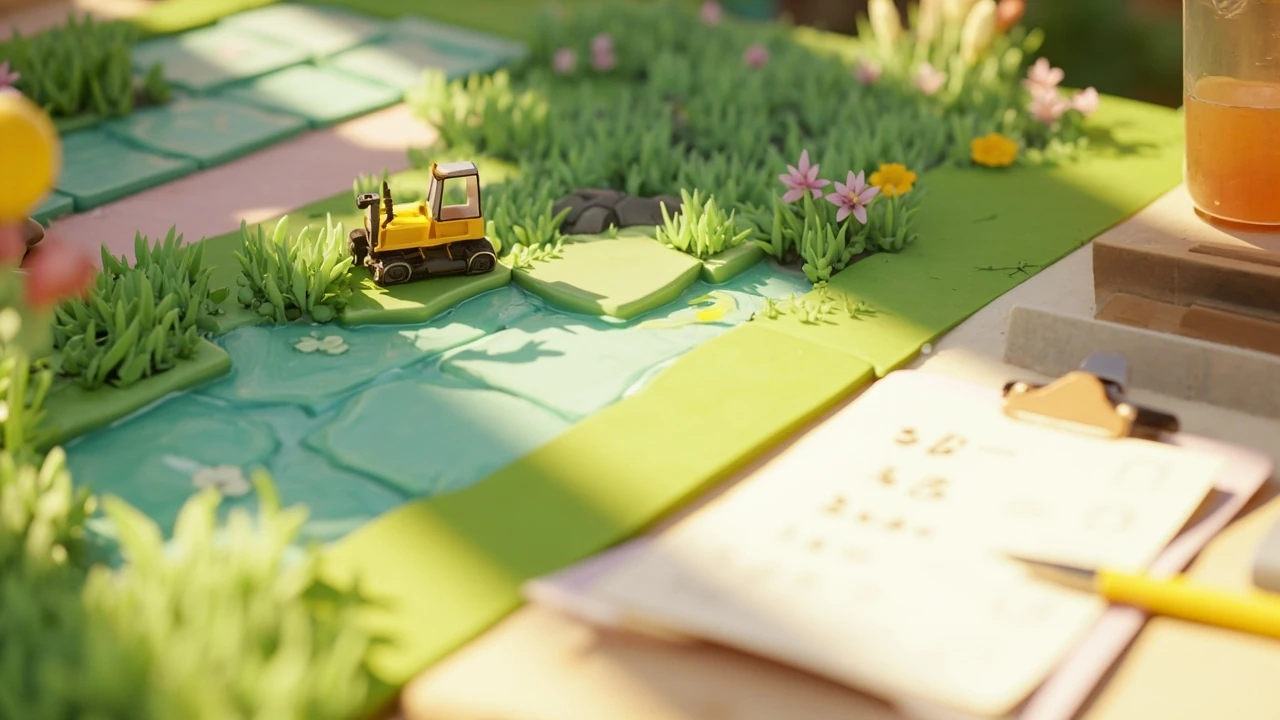
Bulldoze Pokémon Pokopia: what the terrain tool actually does
Bulldoze Pokémon Pokopia is the shorthand players use for the terrain-clearing toolset in the cozy life-sim built around reshaping a living biome tile by tile. The phrase covers three distinct actions in practice: clearing a tile back to bare ground, flattening elevation so placement grids line up, and removing structures or paths the player previously laid down. None of those actions is a simple delete, and none of them happens without a reaction from the world that surrounds the tile.
Understanding the tool matters because Pokopia is a creature-habitat sandbox first and a decoration game second. The terrain layer is the system that decides where a Pokémon can settle, which items spawn, and how the daily rhythm of the island shifts. Treating the bulldozer as a generic undo button tends to leave a player frustrated when a familiar spawn pattern quietly disappears. Treating it as a deliberate editing pass, on the other hand, fits how the game actually expects players to redesign the land.
This guide walks through the mechanics that drive the tool, the visual and audio feedback that confirms a change has registered, the limits you are likely to hit, and the workflows that experienced players settle into. It is written for someone who already has a copy of the game and is trying to plan a real edit, not for a reader browsing screenshots.
How the bulldoze tool fits into the terrain system
The terrain system in Pokémon Pokopia is layered, and the bulldozer only touches the layer the player selects. Picking up a tile of grass and removing it does not necessarily clear the soil layer beneath it, does not necessarily remove the decoration placed on top, and does not necessarily break a path routed through the tile. Knowing which layer a tool acts on is the difference between a clean edit and a strange half-finished patch that takes a second pass to repair.
The four layers the editor exposes
- Ground cover: grass, sand, dirt, snow, and the rarer moss and volcanic tiles. The bulldozer swaps these back to the default soil tile unless the player has upgraded the base terrain.
- Elevation: a single-step raise or lower grid that controls slope, water flow, and whether a tile is considered “indoors” for placement rules. The bulldozer flattens this layer to the surrounding baseline.
- Structures and paths: placed buildings, fences, bridges, and walkways. The bulldozer returns the tile to its previous ground state, which is not always the same as the current ground state if the player has since re-tiled the area.
- Decoration and small props: rocks, logs, lampposts, signposts, and similar detail items. These usually pop on the first bulldoze pass, but a second pass is sometimes needed if the prop was anchored to a structure rather than the ground.
What the world does in response
Bulldozing is not a silent action. The tile animates as it clears, the ambient sound palette of the surrounding biome shifts slightly for a moment, and nearby Pokémon react. Calm species usually glance toward the cleared tile, then return to their routines within a few in-game minutes. Shy or skittish species tend to leave the adjacent radius for the rest of the in-game day, which can feel like a regression if the player was specifically editing to attract them. This is intentional design rather than a bug. The world treats a bulldoze pass as a small disturbance and recovers on its own schedule.
How the daily cycle interacts with editing
Terrain edits do not pause the day. Pokémon continue to wander, weather continues to roll, and time-limited events such as the aurora night or the meteor shower still run on top of the player’s editing session. The tool itself does not care about the hour, but the player often does, because the visual feedback for a successful edit is easiest to read in clear daylight and hardest to read during fog and late evening.
Where the bulldoze tool actually lives in the interface
Players searching for a single “bulldoze” button often miss it because the tool is integrated into the broader terrain editor rather than given a top-level shortcut. The clearest path to the bulldozer passes through the inventory or tool wheel, then through the terrain category, then through a sub-icon that represents removal rather than placement.
Two routes into the tool
- Tool wheel route: open the radial tool wheel, move to the terrain section, and select the clearing icon. This is the fastest route for a small, surgical edit.
- Terrain menu route: open the full terrain menu from the pause or build screen, switch to edit mode, then choose the clearing sub-tool. This route exposes a small brush-size selector that the wheel does not show.
Brush sizes and what they are good for
The brush-size selector changes how many tiles the cursor affects in a single drag. The default one-tile brush is the safest choice when a player is working next to a creature’s favorite nest or a fragile decoration. The medium three-by-three brush is useful for clearing a small overgrown patch in one pass. The large five-by-five brush is best reserved for reclaiming an abandoned area that has already lost its creature population, because a wide pass can move many spawn points at once.
Confirmation, undo, and the cost of mistakes
Bulldozing does not ask for a confirmation prompt. The tool trusts the player. The undo stack, accessed through the standard in-game history menu, can reverse the last few edits but does not extend back across a full in-game day, so a long editing session can produce changes that no longer fit cleanly inside the undo window. This is one of the reasons experienced players make small test passes, save, and only then commit to a larger edit.
Common situations where bulldozing is the right call
Not every terrain problem is a bulldoze problem. Sometimes a tile is visually wrong because the elevation is off, or because the wrong ground-cover item was placed, or because a structure was anchored to a path. Using the bulldozer in those cases usually makes the situation worse before it gets better.
Clearing a mis-tiled patch
The most common reason to bulldoze in Pokopia is to undo a ground-cover choice. Players often experiment with sand or volcanic tiles, decide the look does not fit the rest of the island, and then want to return the area to grass. The bulldozer handles this case well because ground cover is a single layer, and clearing it returns the tile to a known default state.
Repositioning a path that has stopped routing creatures
Paths are not just cosmetic. They signal to the pathfinding system that the connected tiles are easy to walk through. If a path was laid down before the player unlocked a certain decoration and now routes through a building footprint, bulldozing the path and re-routing it is usually faster than trying to repair the broken segment by adding extra tiles.
Reclaiming an area the player no longer uses
Some players build a small outpost early in the game, lose interest in the location, and want to reuse the space. The bulldozer is the right tool for a wholesale reclaim, but the player should expect the affected Pokémon to relocate for a day or two while the system redistributes spawns.
Removing a tile that prevents a new building from fitting
Players who want a broader context for the systems described in this guide can read more about how the game has been received and how its mechanics compare to other recent cozy life-sims in the dedicated pokémon pokopia reviews roundup on OpenCritic, or follow the broader history of the franchise and its creature-habitat design language on the Pokémon Pokopia Wikipedia entry, which provides useful background for this point.
Building footprints in Pokopia are unforgiving about the tiles beneath them. A single misplaced rock, a lamppost on the wrong corner, or a stray patch of moss can prevent a new building from snapping into place. The fastest fix is usually to bulldoze the offending tile, let the cursor rest on the cleared ground for a moment, and then try the placement again.
Where bulldozing is the wrong tool
Players who reach for the bulldozer as a general-purpose fix tend to create more work than they save. A few recurring cases are worth calling out specifically.
When elevation is the actual problem
A tile that looks “wrong” because water is pooling, because a bridge does not line up, or because a creature cannot reach a feeding spot is almost always an elevation problem rather than a ground-cover problem. The bulldozer does not change elevation. Using it to clear a tile and then wondering why the slope is unchanged is one of the most common beginner frustrations.
When the player wants to keep the decoration
Bulldozing a tile that has a small prop on it usually destroys the prop unless the prop was anchored to a structure. Decorative rocks, signposts, and lampposts are recoverable through the inventory in many cases, but only if the player picks them up before bulldozing rather than after. Once the ground is cleared, the prop is treated as abandoned and may be lost.
When the player is editing near a quest anchor
Several quests and tutorials anchor to a specific tile or to a specific structure footprint. Bulldozing a quest-anchored tile can leave the quest unable to progress until the player reloads a save or returns to the relevant NPC. The safer habit is to finish the active quest, complete any sub-quests that depend on the same area, and only then begin a major terrain pass.
Step-by-step: a clean bulldoze pass for a small area
The following sequence is the workflow that experienced players tend to settle into for a deliberate edit. It is written for a single small area, roughly a three-by-three patch, and scales with care.
- Save the game. Manual saves are easy to overwrite later, and a clean save before any major edit is the single most useful safety habit.
- Note the current state. Take a mental snapshot of which Pokémon are in the area, which items are placed, and which path segments cross the patch.
- Open the full terrain menu, switch to edit mode, and select the clearing sub-tool.
- Set the brush to one tile and clear the center of the patch first, watching the visual feedback for the cleared soil.
- Step outward tile by tile, pausing briefly after each clear to confirm that no path segment has been cut and no quest anchor has been disturbed.
- Pick up any recoverable decorations from the cleared tiles before moving on.
- Switch to the elevation tool if any tile still appears wrong, and correct the slope with small raise or lower passes rather than trying to flatten the entire patch at once.
- Re-place ground cover, paths, and decorations, working from the largest layer down to the smallest.
- Save again. Two saves, one before and one after, are easier to recover from than a single mid-edit save.
Bulldozing versus other terrain tools
The clearing tool is one of several terrain tools in the editor, and choosing the right one for the job is what separates a clean edit from a string of corrections. The table below compares the most common tools across the dimensions that matter for a deliberate edit.
| Tool | What it changes | Reversible | Best for | Risks |
|---|---|---|---|---|
| Bulldoze (clearing) | Resets ground cover to default soil; leaves elevation untouched | Yes, within the in-game undo window | Mis-tiled patches, reclaiming a small area, removing a path segment | Can destroy unanchored decorations; can disturb nearby spawn points |
| Flatten elevation | Brings a tile to the surrounding baseline height | Yes, within the in-game undo window | Fixing water pooling, realigning a path, fitting a new building | Can reveal a water tile that was hidden by the slope; can disconnect a bridge |
| Raise or lower | Adjusts a single tile by one step in the selected direction | Yes, within the in-game undo window | Creating a small hill, building a stair, tuning a view | Easy to over-edit; large passes are slow because each step is one tile |
| Ground-cover paint | Replaces the current ground cover with the selected tile type | Yes, by painting back the previous cover | Repainting a region, switching biome palette, hiding a small scar | Can break pathfinding if used on a routed path; can shift weather affinity |
| Structure removal | Returns a building footprint to its previous ground state | Yes, by re-placing the structure | Repositioning a building, reclaiming a footprint, undoing a misplaced build | Refund is partial in some cases; nearby path segments may need re-routing |
How spawn points respond to a bulldoze pass
The single most important rule for editing a living biome in Pokémon Pokopia is that creatures care about the tile they are on, not the player who is editing it. A bulldoze pass that opens a clearing in a quiet forest will rarely change the forest’s population, because the surrounding cover is intact. A bulldoze pass that thins a small grove of decorative trees down to bare soil, on the other hand, will almost always push the grove’s residents out of the area for at least a day.
What the spawn system actually tracks
- Ground cover identity: a tile of moss counts as a different micro-biome than a tile of grass for spawn purposes.
- Neighborhood density: the spawn system weighs the tiles around a candidate spawn point, so removing a single tile is rarely disruptive but removing three in a row often is.
- Decoration density: a few small props increase a tile’s “interest” score, which pulls rare species toward it. Removing a dense decoration cluster can drop a rare spawn back to a more common one.
- Time of day and weather: the spawn roll is re-evaluated on a timer, so a population that disappears after an edit usually returns within a day unless the underlying tile identity has changed.
How to bring a population back faster
Players who want to restore a depleted spawn area quickly have a small set of options that do not require waiting through a full day-night cycle. Re-tiling the cleared ground with the same cover type as the surrounding area, replacing lost decorations, and laying a short path that connects the area back to a known route are the three changes that tend to bring a population back within the same in-game day.
Limitations and known edge cases
The bulldozer is a robust tool, but it has a few predictable edge cases that catch even careful players. Most of them are consequences of the layered terrain system rather than bugs, and understanding them makes the work feel more honest.
The “ghost path” problem
When a player bulldozes a tile that a path was routed through, the path is removed but the underlying ground is sometimes left with a faint visual scar that the pathfinding system still treats as a waypoint. Walking across the tile can briefly route a creature through the scar before snapping back to a real path. The fix is to place a fresh tile of ground cover on the scar, which clears the pathfinding memory.
The “stubborn decoration” problem
A few decorations are anchored to a structure rather than the ground, and the bulldozer does not always recognize the anchor. The decoration will stay in place after the surrounding ground is cleared, and the player will need to enter the structure menu to remove it manually. The visual result is a floating prop above bare soil, which is harmless but easy to mistake for a glitch.
The “elevation shift after clear” problem
Clearing a tile does not change its elevation, but the visual contrast between a cleared tile and its neighbors can make a previously subtle slope look more dramatic than it is. Players who decide to flatten after clearing sometimes end up lowering or raising a tile by an extra step, which compounds over a few passes and produces a visible dip or rise. The safest habit is to check the elevation of a tile before clearing, not after.
The “stacked undo” problem
Each bulldoze pass consumes one slot in the undo stack, and a long editing session can fill the stack before the player reaches the end of the work. Trying to undo back through a full stack of small edits usually produces a partial recovery that is harder to reason about than a clean save-and-reload. A practical workaround is to commit to a save point every few minutes and to use undo only for the most recent pass.
Designing around the tool: how the system rewards a different editing style
Players who treat the terrain editor as a one-time planning step tend to enjoy the game more than players who treat it as a freeform sandbox. The reason is structural: Pokopia rewards a slow, deliberate pace in which a player commits to a region, lets the population settle, observes what works, and only then makes a second pass. The bulldozer is the tool that makes the second pass possible without rebuilding the entire island.
The “settle, observe, edit” loop
- Settle: place the ground cover, the path, and the first round of decorations in a small region.
- Observe: let the area run through at least one full day-night cycle and note which Pokémon appear, which items spawn, and which tiles feel empty.
- Edit: make a small, deliberate pass with the bulldozer, the elevation tool, or the paint tool, then repeat the loop.
How the loop scales
The settle-observe-edit loop scales naturally with the player’s available time. A short session might cover a single three-by-three patch. A longer session can cover an entire biome transition. The key habit is to keep the observation step honest. Skipping it produces edits that look correct in the moment but feel wrong the next time the player visits the area.
Comparing the bulldozer to tools in similar life-sims
Players coming from Animal Crossing, Stardew Valley, or Disney Dreamlight Valley often have an intuition for terrain editing that does not quite match Pokopia’s layered system. The comparison below is meant to clarify where the tool behaves like a familiar life-sim editor and where it deliberately diverges.
| Feature | Pokopia bulldozer | Animal Crossing pattern | Stardew Valley pattern | Dreamlight Valley pattern |
|---|---|---|---|---|
| Layered terrain | Yes, with elevation as a separate layer | No, single tile type | No, single tile type | Partial, with a small set of biomes |
| Undo window | Limited, in-game history | Limited, last action | None, save-and-reload | Limited, per-session |
| Brush sizes | Yes, three presets | No, single tile | No, single tile | Yes, three presets |
| Decoration recovery | Often recoverable from inventory | Lost on clear | Lost on clear | Recoverable in some cases |
| Creature response | Temporary relocation possible | None in editor | None in editor | None in editor |
Audio and visual feedback worth learning to read
The game gives players a small, reliable set of feedback signals during a bulldoze pass. Players who learn to read them edit faster and with less frustration.
Visual signals
- A brief tile-brightening animation that confirms the tile has registered the clear.
- A short puff of soil-toned particles that distinguishes a real clear from a brush hover.
- A subtle grid highlight around tiles that are part of an active brush size, so the player can predict the affected area before committing.
Audio signals
- A short clearing chime that matches the soil-tile identity, which makes it easy to confirm that the cleared tile is the type the player expected.
- A faint creature-call shift from the nearest Pokémon, which is the most reliable signal that a spawn point has been disturbed.
- A path-routing tone that plays when a path segment has been cut, which is the cue to re-route before continuing.
Practical workflows for common edits
The following workflows combine the steps above into patterns that experienced players tend to fall into. They are not mandatory, and the game is forgiving of improvisation, but they tend to reduce the number of save-and-reload cycles.
Reclaiming a small overgrown patch
- Save, then open the terrain menu and select the clearing tool with a one-tile brush.
- Clear the center tile and watch for the path-routing tone.
- Clear the perimeter tiles one at a time, picking up any recoverable decoration as you go.
- Re-tile the area with the ground cover that matches the surrounding biome.
- Re-place a short path that reconnects the area to the nearest route.
- Save and observe for a day before making a second pass.
Repositioning a small structure
- Save, then clear the ground cover on the new footprint with the one-tile brush.
- Use the structure menu to pick up the building, not the bulldozer.
- Place the building on the cleared footprint, watching the placement grid for a clean snap.
- Re-tile the original footprint with the surrounding ground cover.
- Re-route any path segments that ran through the original footprint.
- Save and observe.
Recovering a path that no longer routes creatures
- Save, then clear the broken segment tile by tile.
- Lay a new path along the corrected route, using the small path brush.
- Re-tile the cleared tiles with the surrounding ground cover to clear the pathfinding memory.
- Save and observe a full day-night cycle.
What the system does not expose
A few editing questions that the bulldozer could in principle answer are intentionally left for the player to discover through play rather than through the editor. Listing them honestly is more useful than pretending they are solvable with the tool.
- There is no bulk-clear shortcut that affects an entire biome in a single pass. Large edits are still tile-by-tile work.
- There is no preview of the spawn-point change before a clear, so a player who wants to preserve a rare spawn must rely on the observation step rather than on a tool readout.
- There is no way to copy a tile pattern from one region of the island to another in a single action. The paint tool covers ground cover but not elevation or pathing.
- There is no in-game way to lock a tile against future edits, which means a long editing session can quietly overwrite an earlier careful placement.
How the bulldozer fits the broader design of Pokémon Pokopia
The toolset is not a sandbox feature bolted onto a creature collector. It is part of how the game encourages a slow, observational relationship with the island. The cost of a bad edit is small but real, and the cost of a good edit is the time it takes to commit to it. That asymmetry is the design choice that gives the game its rhythm, and it is the reason players who treat the bulldozer as a planning tool tend to enjoy the game more than players who treat it as an undo button.
Working with the in-game day rather than against it
A final habit that makes a real difference is to align large edits with the in-game day’s natural breakpoints. Morning is the most legible time to read visual feedback, mid-day is the best time to place new structures, and evening is the worst time to start a multi-tile pass because the darker palette hides the subtle grid highlights that distinguish a hover from a commit. Players who plan their editing sessions around the in-game clock tend to finish a pass in fewer cycles than players who edit whenever the impulse strikes.
Closing thoughts on a deliberate editing style
The bulldozer in Pokémon Pokopia is a small tool with outsized influence on how the island feels to live in. Used carelessly, it produces visible scars and a population that takes a day to recover. Used deliberately, it is the tool that turns a rough first attempt into a biome that rewards a second look. The difference is not the tool but the editing style around it, and the game gives every player the time to develop that style on their own island.
Frequently asked questions
What does the bulldozer tool actually do in Pokémon Pokopia?
The bulldozer clears the current ground cover of a tile back to default soil and removes any path segment routed through the tile. It does not change elevation, does not remove elevation-anchored structures, and does not affect the spawn system beyond the tiles it actually touches. The action is reversible through the in-game undo window for a limited number of recent edits.
Where is the bulldozer tool in the interface?
The tool is reached through the radial tool wheel under the terrain category, or through the full terrain menu under the edit mode and clearing sub-tool. The full menu exposes a brush-size selector that the wheel does not show, so a deliberate edit usually starts from the full menu rather than the wheel.
Does bulldozing scare Pokémon away permanently?
No. Disturbing a small number of tiles usually produces a temporary relocation that lasts for the rest of the in-game day. Restoring the original ground cover, replacing lost decorations, and re-routing a short path through the area are the most reliable ways to bring the previous population back within the same day.
Can the bulldozer remove elevation?
No. The bulldozer clears ground cover and paths but leaves elevation untouched. Players who want to flatten a slope need the dedicated elevation tool, which can raise, lower, or flatten a tile relative to its neighbors. Using the bulldozer on a slope and then wondering why the slope is unchanged is one of the most common beginner frustrations.
Does the bulldozer refund decorations placed on the cleared tile?
Many decorations are recoverable from the inventory if the player picks them up before bulldozing. Once the ground is cleared, decorations that were anchored to the ground are usually lost, while decorations anchored to a structure remain in place. The safest habit is to pick up the decoration first, clear the tile, and then re-place the decoration afterward.
How many tiles can the bulldozer affect in one pass?
The brush selector offers three sizes: a single tile, a three-by-three patch, and a five-by-five patch. The single-tile brush is the safest choice for surgical edits near creature nests or fragile decorations. The larger brushes are best reserved for reclaiming an area that has already lost its population.
Does the bulldozer work during a quest or tutorial?
It works mechanically, but several quests and tutorials anchor to a specific tile or footprint. Clearing an anchored tile can leave a quest unable to progress until the player reloads a save or returns to the relevant NPC. The safer habit is to finish the active quest before starting a major pass.
Can the bulldozer copy a tile pattern from one area to another?
No. The bulldozer clears tiles, but it does not capture or copy patterns. The paint tool can re-tile a region with a single ground cover, but elevation, paths, and decorations must still be re-placed by hand. Players who want a faithful copy of a region usually rebuild it from a screenshot rather than from the toolset.
What is the difference between the bulldozer and the structure removal tool?
The bulldozer clears ground cover and paths. The structure removal tool returns a building footprint to its previous ground state and is reached through the structure menu rather than the terrain menu. Using the wrong tool for the job is a common source of the floating-prop problem, in which a decoration stays anchored to a structure while the surrounding ground is cleared.
Is there a way to lock a tile against future edits?
No. The game does not expose a tile-lock feature, which means a long editing session can quietly overwrite an earlier careful placement. The most reliable safeguard is to commit to a manual save point at the end of each deliberate pass and to use the undo window only for the most recent edit.